
First steps: signing up
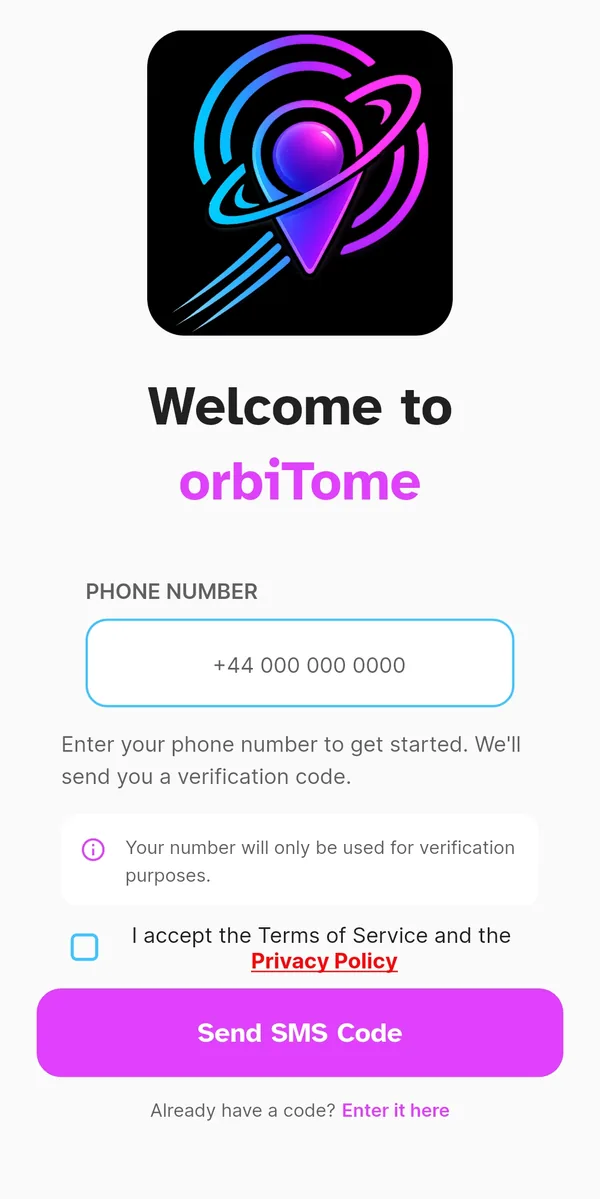
All it takes to start is your phone number: no password to remember, no endless forms. The number is never published anywhere — it only opens your account and lets friends who already have you in their contacts find you.
One detail that makes all the difference: orbiTome works across several countries, so the number must be entered with its international dialling code — +44 for the UK, +1 for the US. It is the most common mistake on first sign-in: without the code, the SMS never leaves.
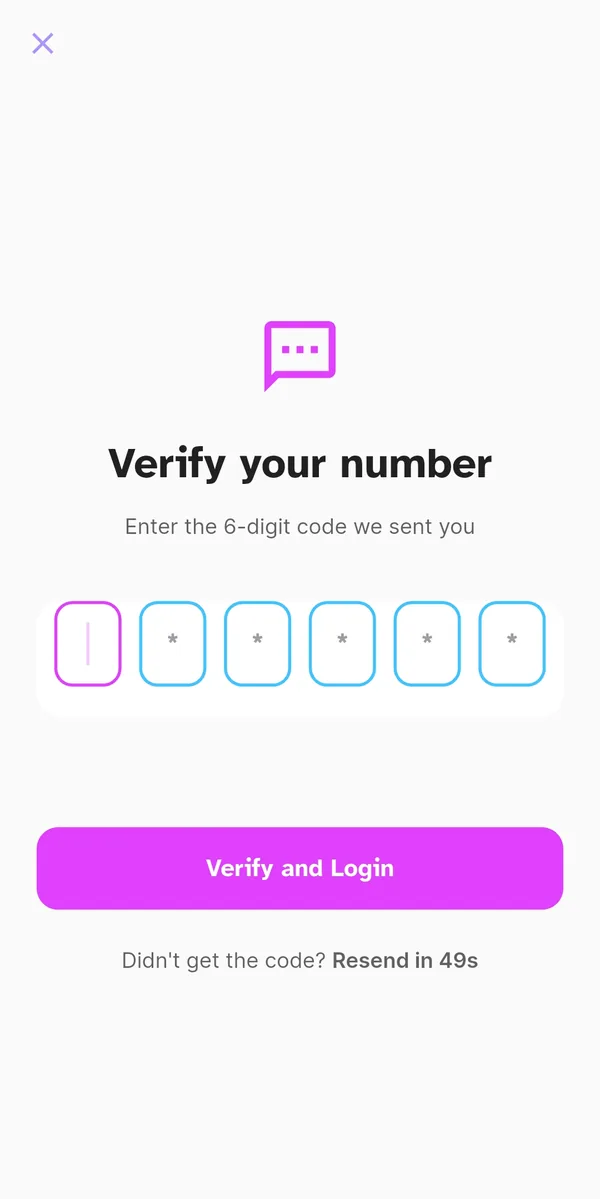
Accept the Terms, tap “Send SMS code” and type in the six digits you receive. If this is your first time opening the app, a short walkthrough shows you the essentials — and you can replay it whenever you like from Profile, under “Introduction”.
Find your friends
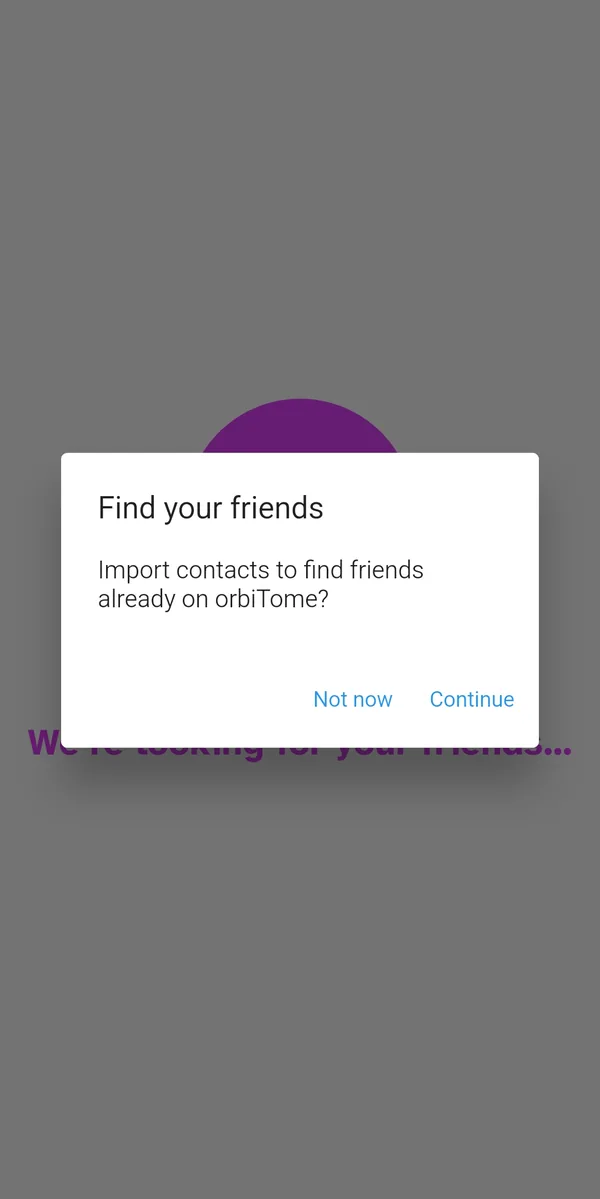
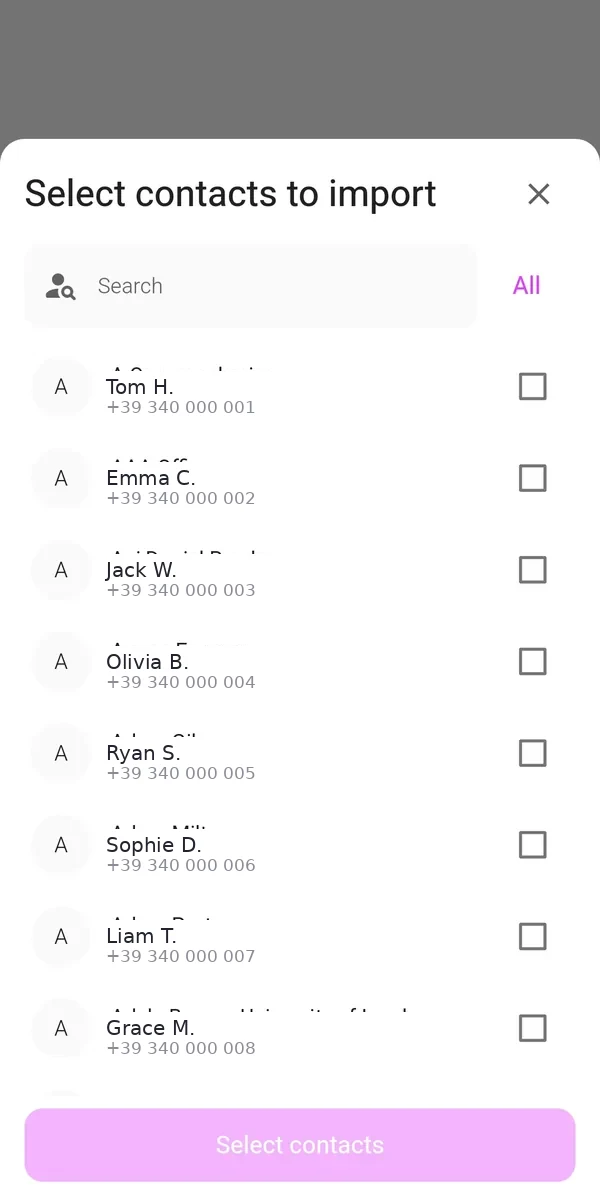
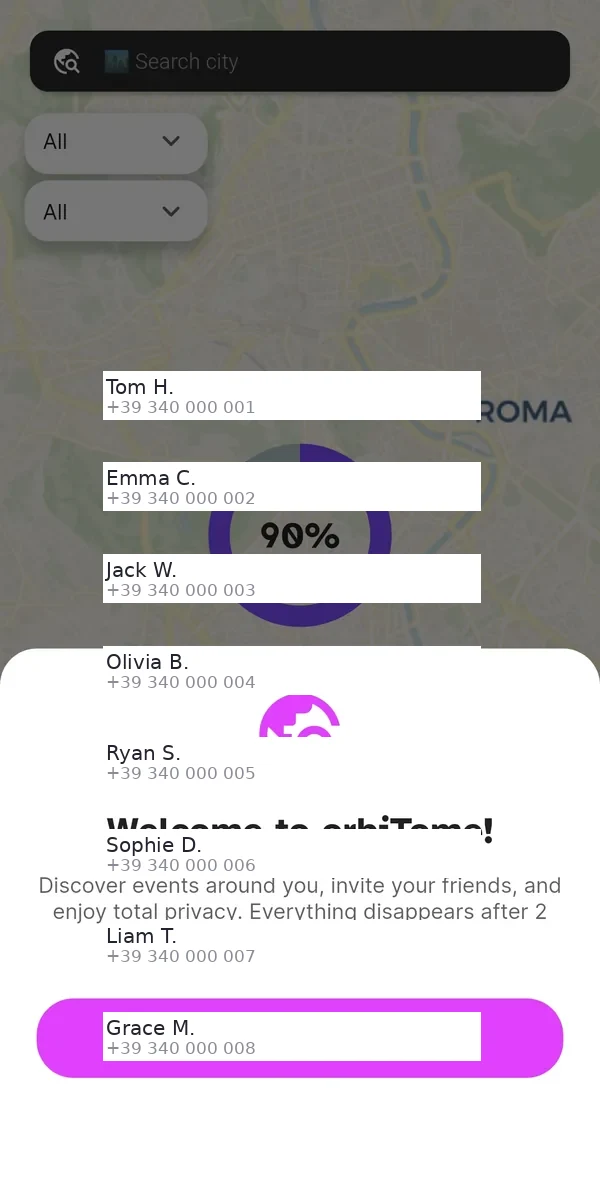
On first launch orbiTome offers to import your contacts, so you can see who is already on board. You decide who to pick: one by one, or everyone at once with “All”. The same goes for every import screen in the app — the choice is always yours.
The point we won't compromise on: your address book stays on your phone. Contacts are imported purely to make the app work locally and are never uploaded to our servers.
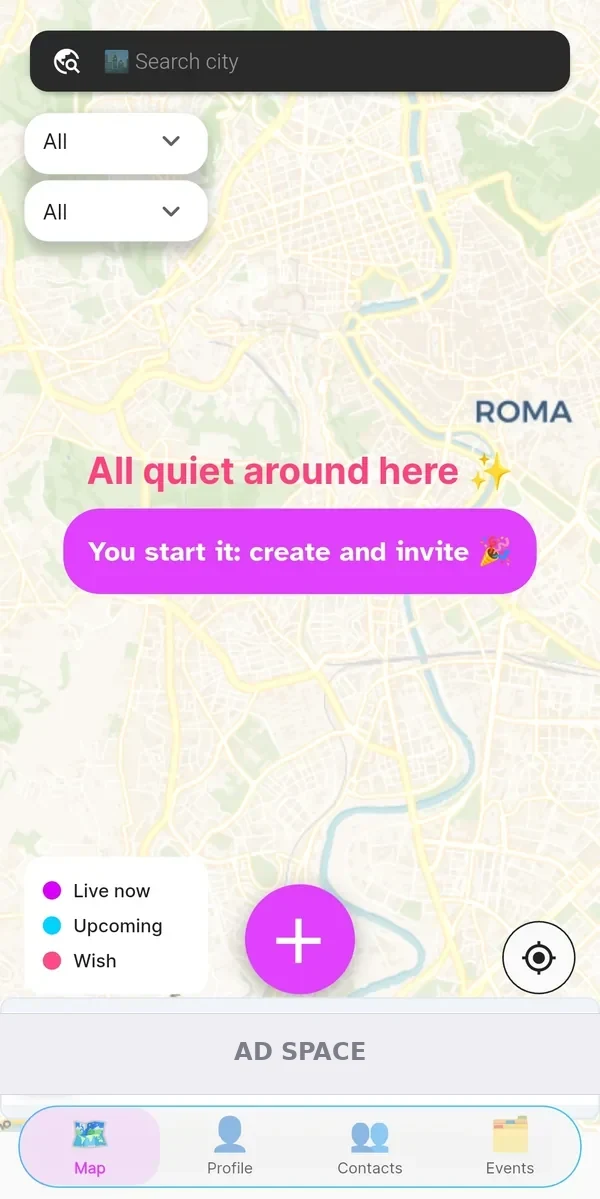
Home: your map
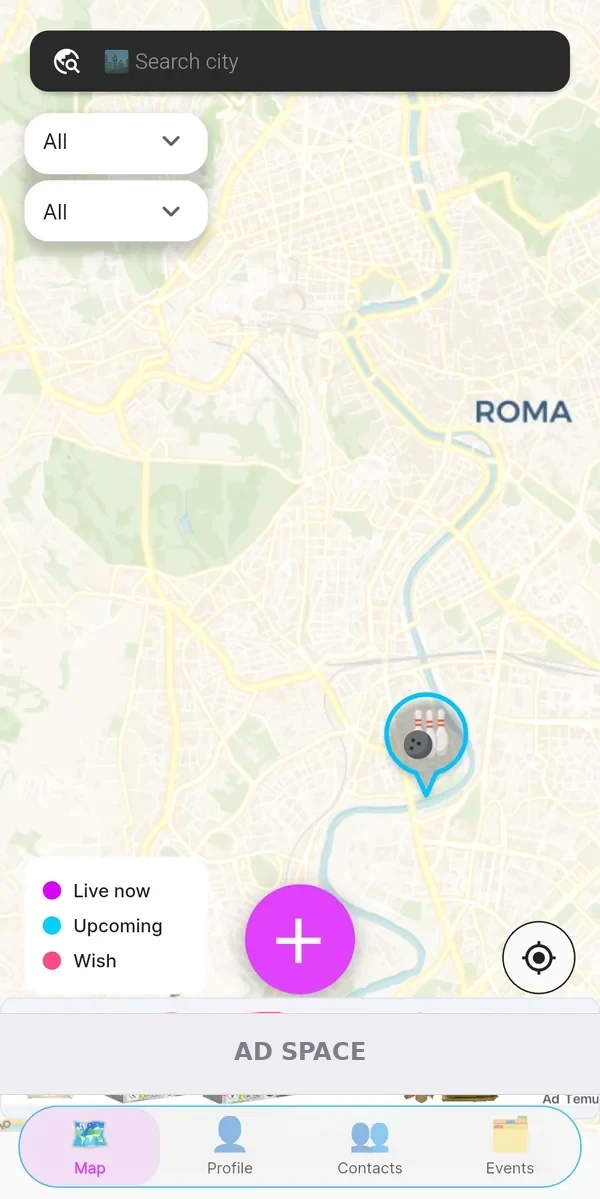
Home is a living map. A small colour key tells you at a glance what each pin means: purple for events happening now, blue for scheduled ones, pink for Wishes — ideas floated by someone looking for company.
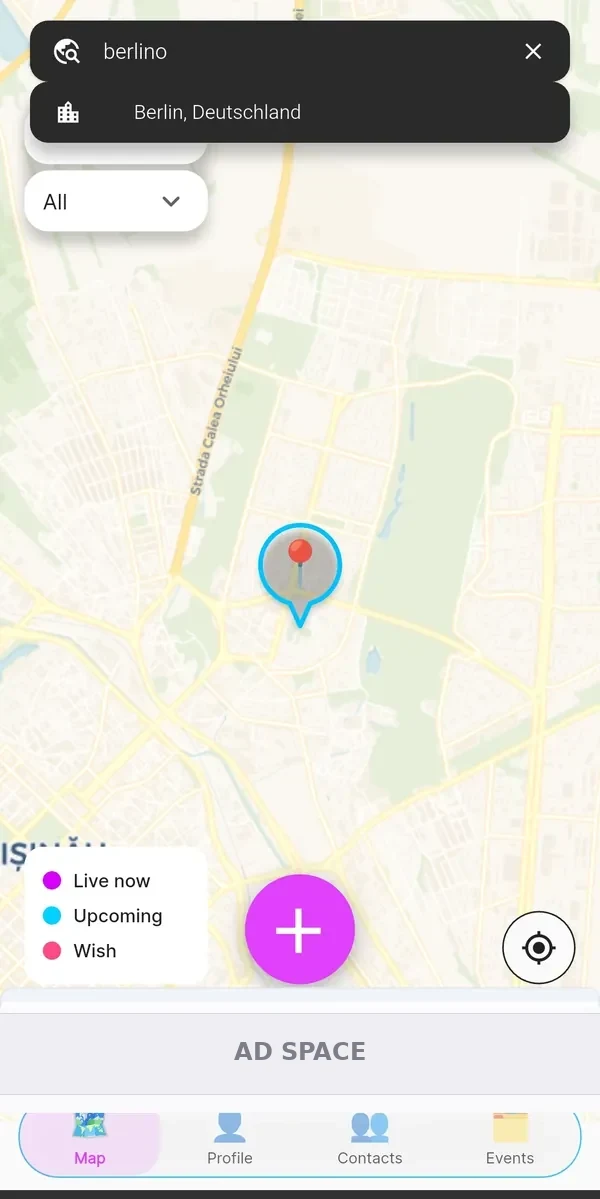
At the top centre there's city search: handy for peeking at what your friends are up to abroad without leaving the sofa. Top left, two filters: the first picks the time window, the second the type of event. Bottom right, the button that snaps you back to your own location.
The bar along the bottom links the four main pages — Map (which is also Home), Profile, Address Book and Events — and in the middle sits the + button, where all your events begin.
Create an event in three taps
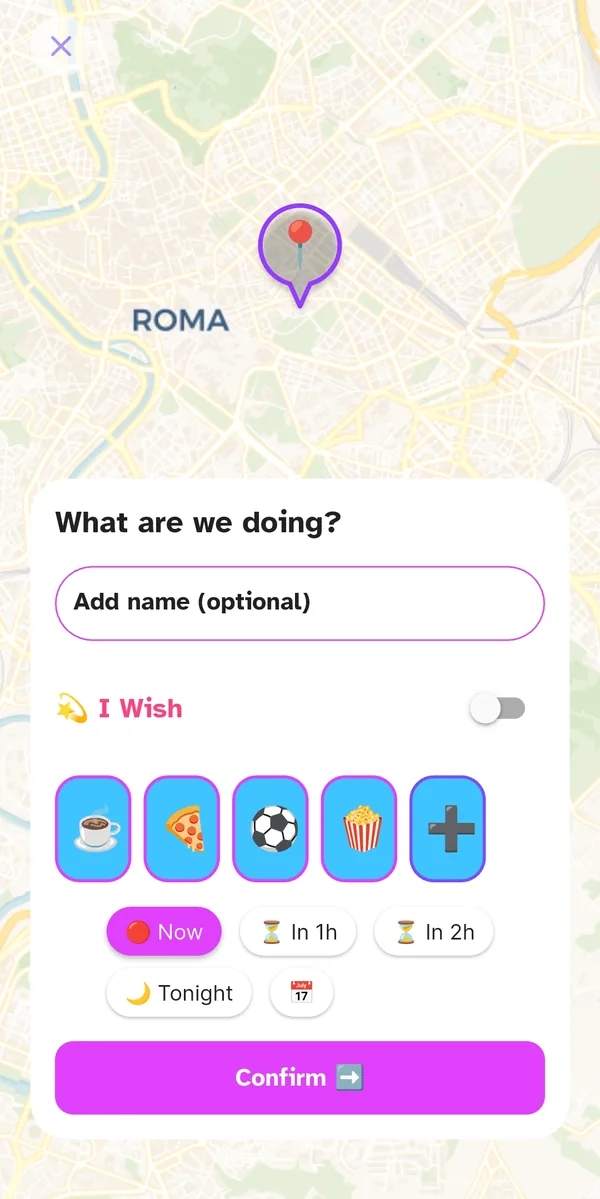
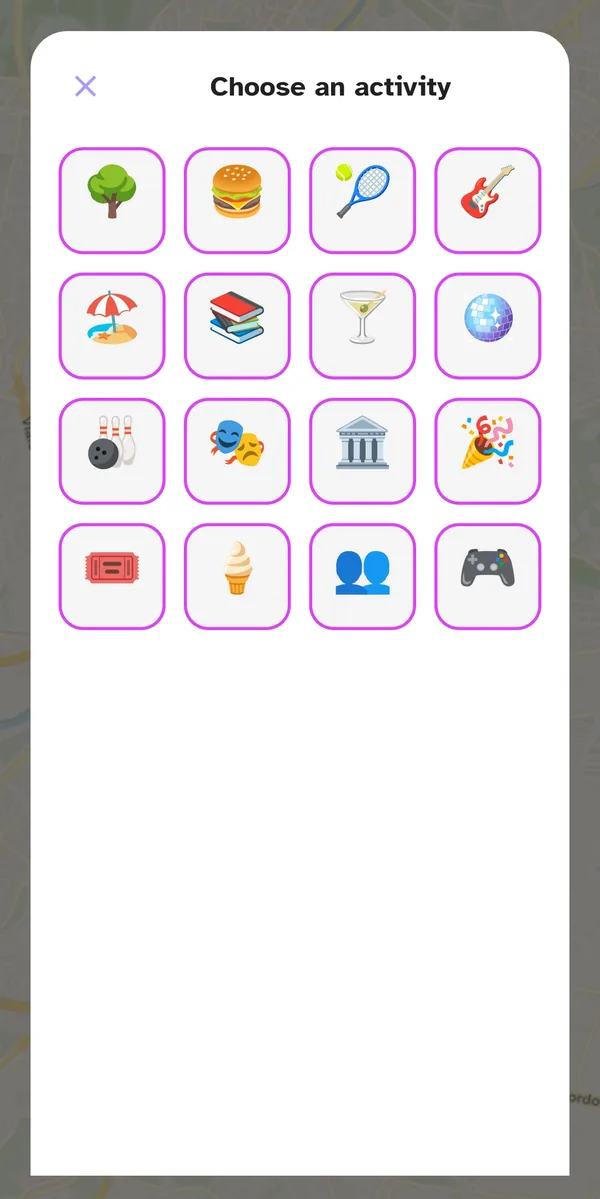
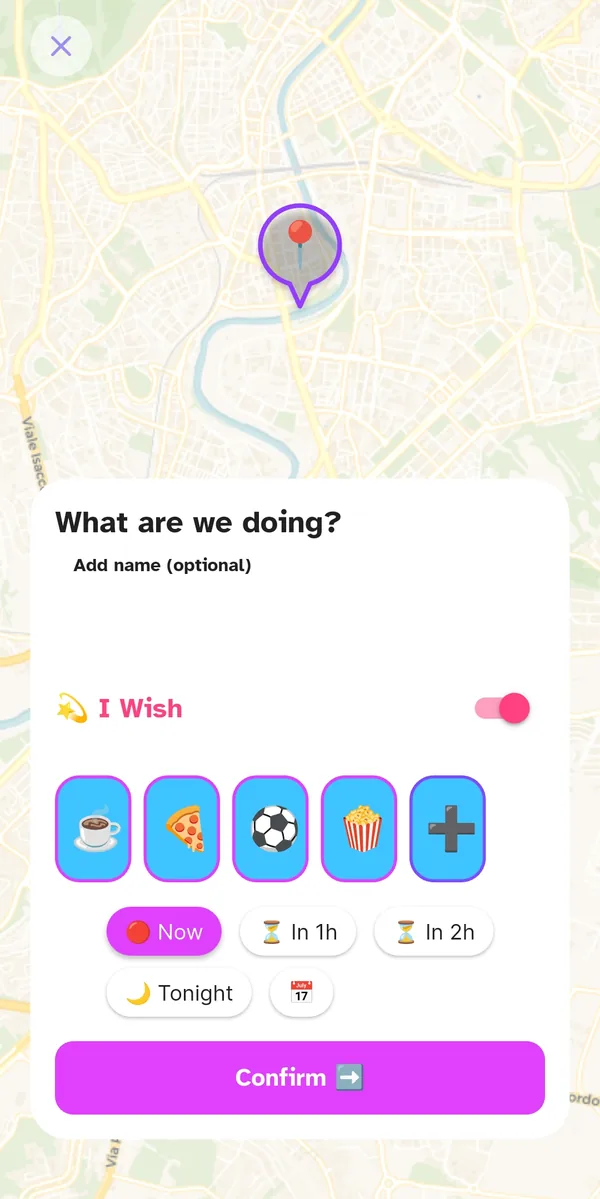
Tap + and answer a single question: “What are we doing?”. Add a title if you feel like it (it's optional), pick an icon — coffee, pizza, sport, cinema and plenty more — and choose when: now, in an hour, in two, tonight.
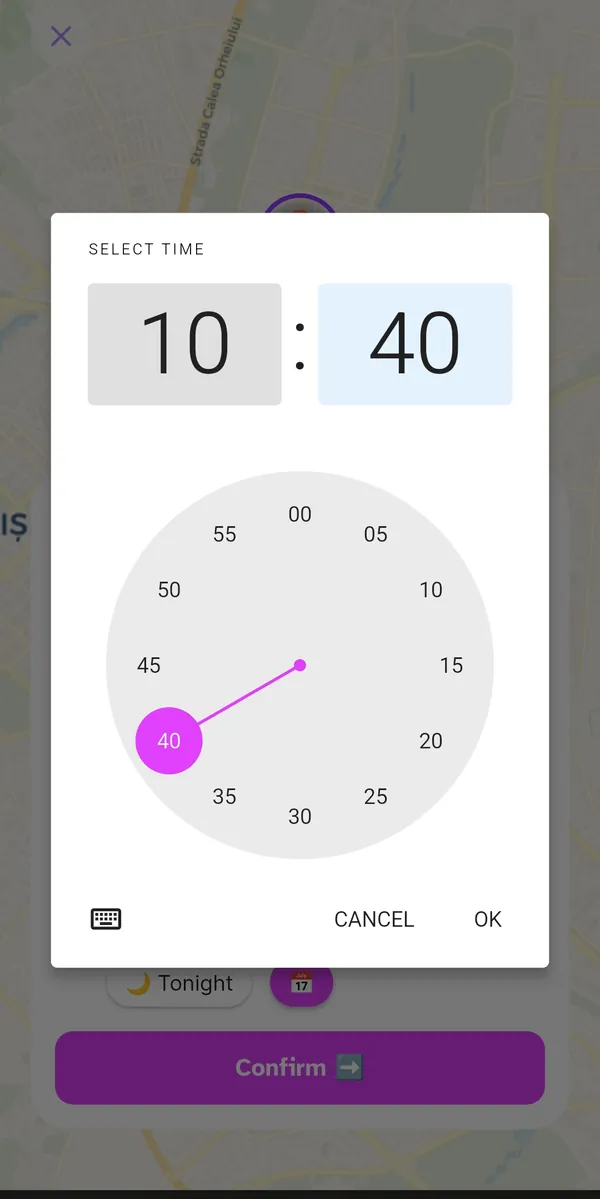
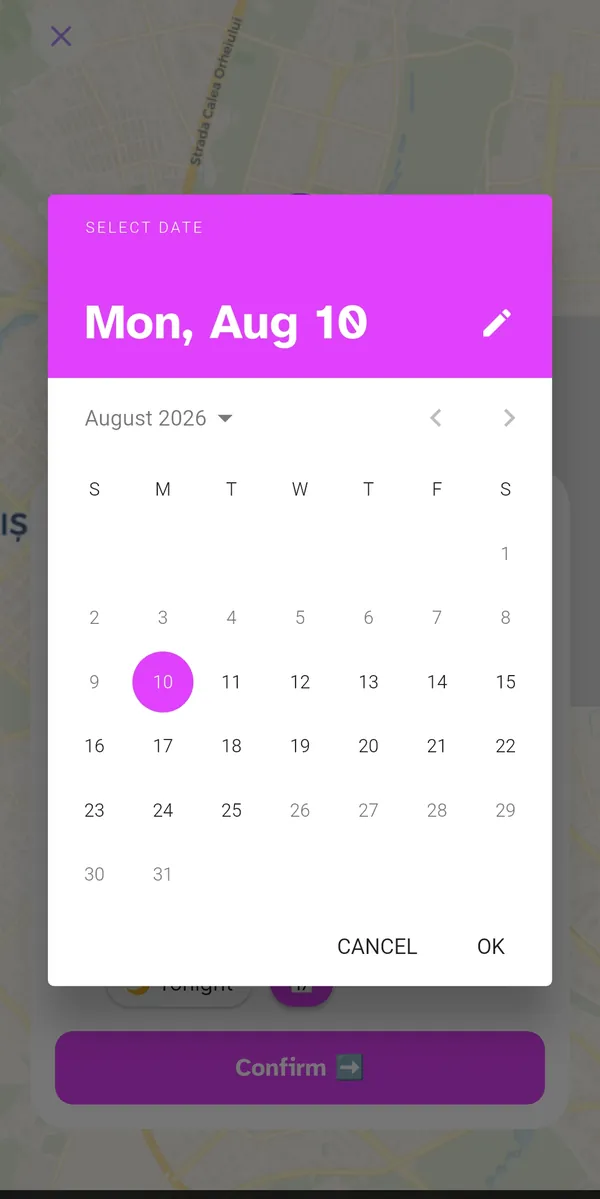
Need an exact time or a different day? The clock and calendar are one tap away. The same screen also holds the Wish toggle, which changes what the event is: from “I'm organising it” to “I'd love someone to”.
⏳ How long an event lasts
orbiTome events are built to be short-lived: they appear, they happen, they vanish. How long they stay visible depends on how you created them.
With the quick chips — Now, In 1 hour, In 2 hours — the event stays alive for two hours from its start time. Choose Tonight and it runs until 23:59 the same day. Set a date and time from the calendar and the window widens to four hours. A Wish, being only a suggestion, expires at exactly the time it names.
There is one exception, made for nights that run long: if you are the organiser and you are at the venue, then once less than thirty minutes remain the app extends the event by an hour, and keeps doing so while you stay there, up to a ceiling of six hours from the start. You don't press anything — your location handles it.
The reverse holds too. If you are the organiser, you have checked in at the venue and then move away, the event closes: immediately if nobody is left, or after thirty minutes of grace if people are still there — long enough to come back if you only went to move the car.
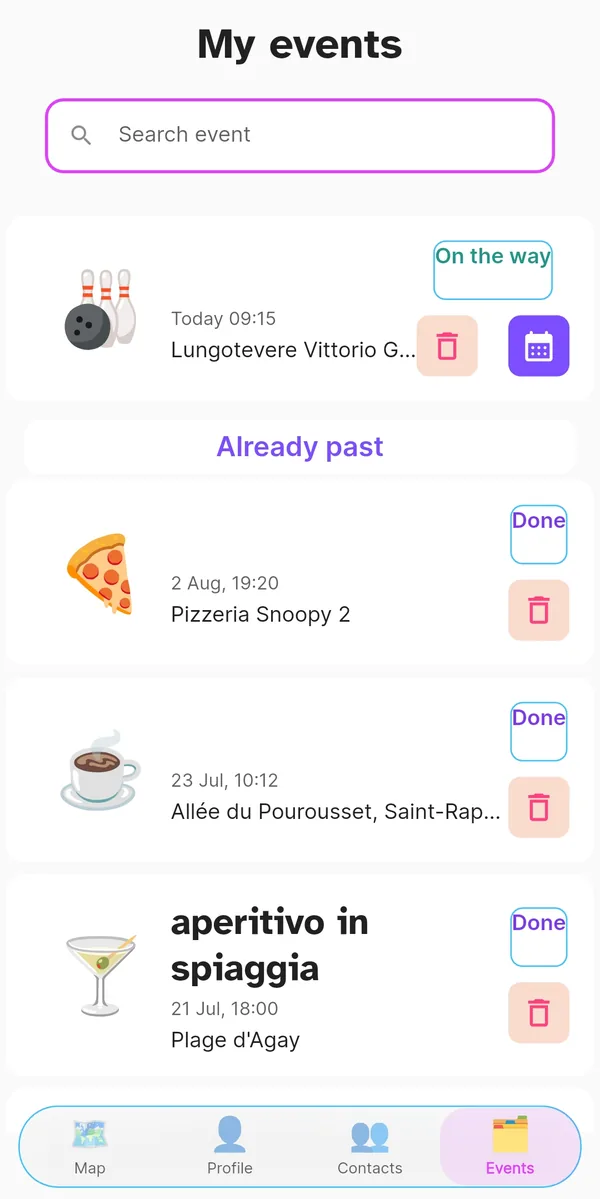
💫 Wish: float an idea

Not everything has to be settled in advance. The “Wish” toggle lets you float a want — “I could murder a pizza” — without committing to anything: friends see it on the map and, if they like the idea, they answer.
Once enough people are in, you turn the wish into a real event from its own card: place, time, guests. It's the lightest way to find out who's up for it, without putting anyone on the spot and without organising something that then falls through.
Invite and share
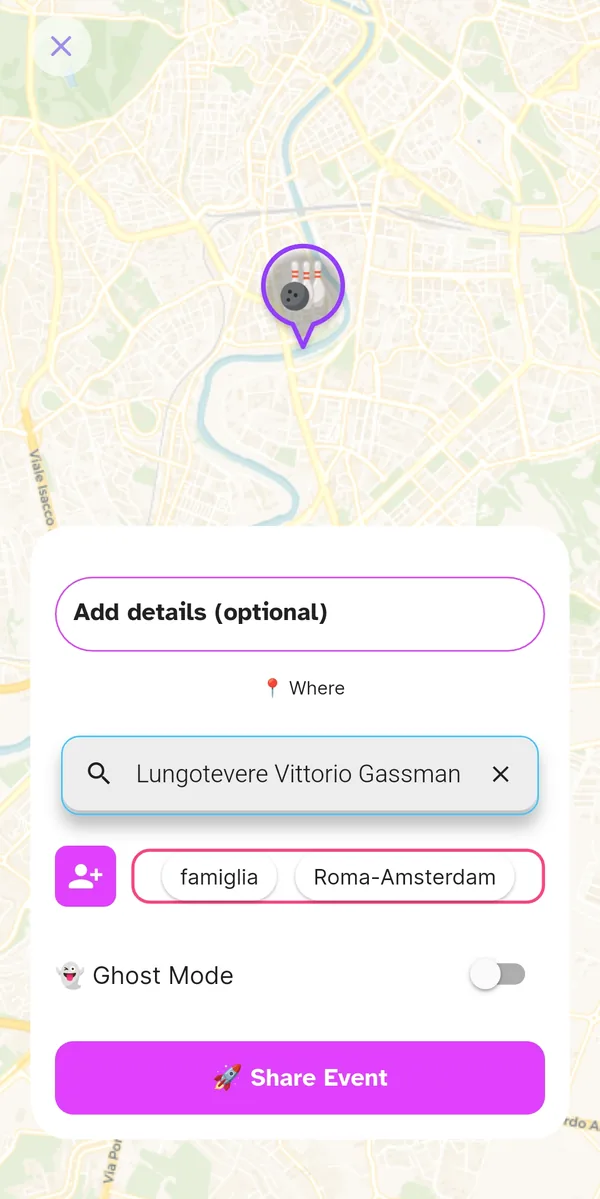
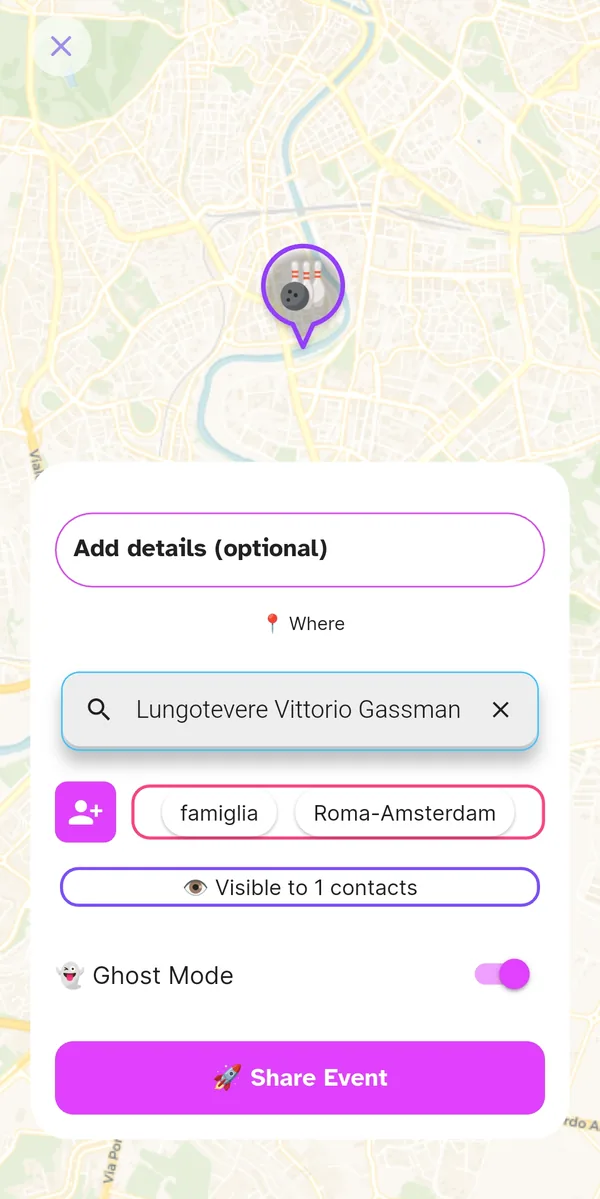
Before publishing you round out the card: a description or a little extra information, the Where (search for a place or an address on the map), who to invite and under which tag.
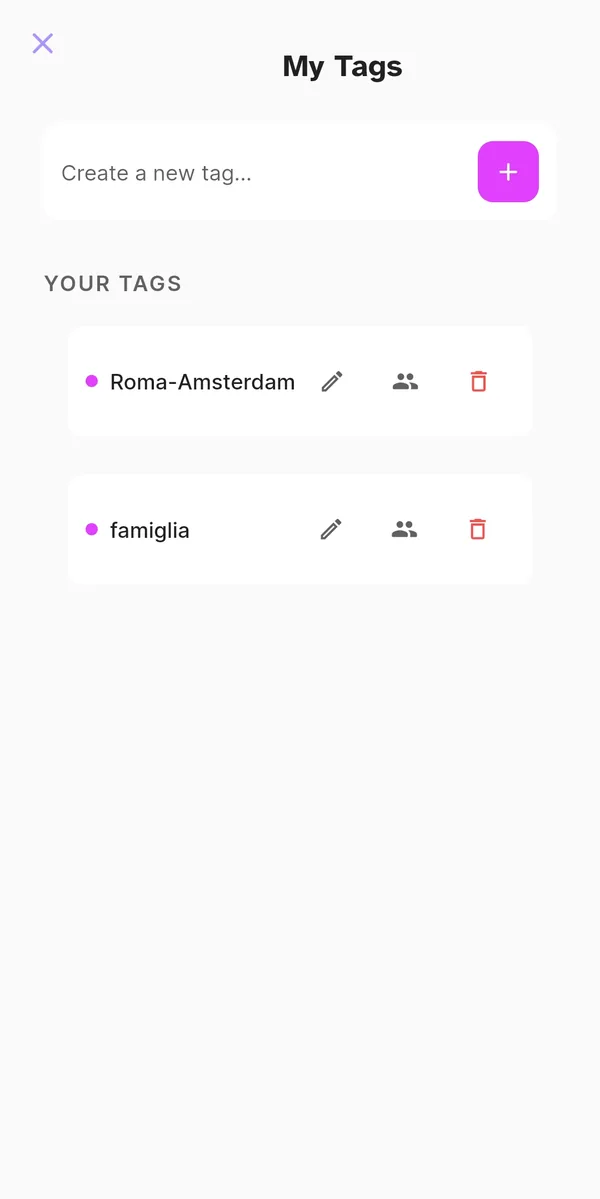
Invitations go out one by one or by group, and you can build the group right there: pick the people, give it a name, and it's waiting for you next time.

Then decide whether the event is for invitees only (Ghost Mode) or open to your contacts, and tap “Share event”. The moment it's shared, the event appears on the map with its icon: anyone nearby can see it and join.
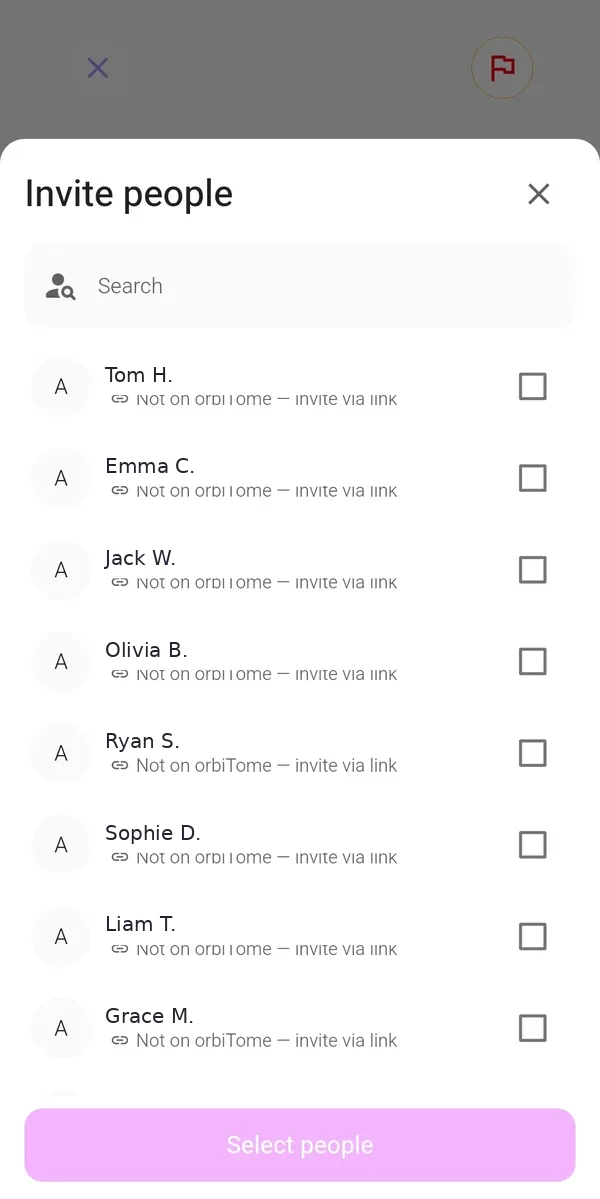
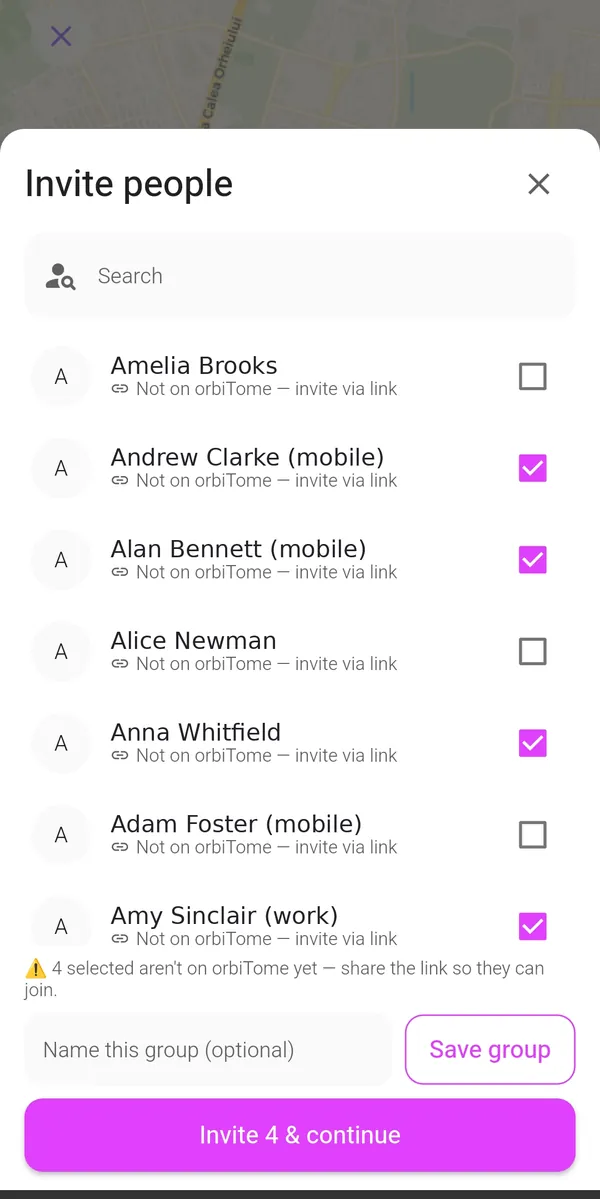
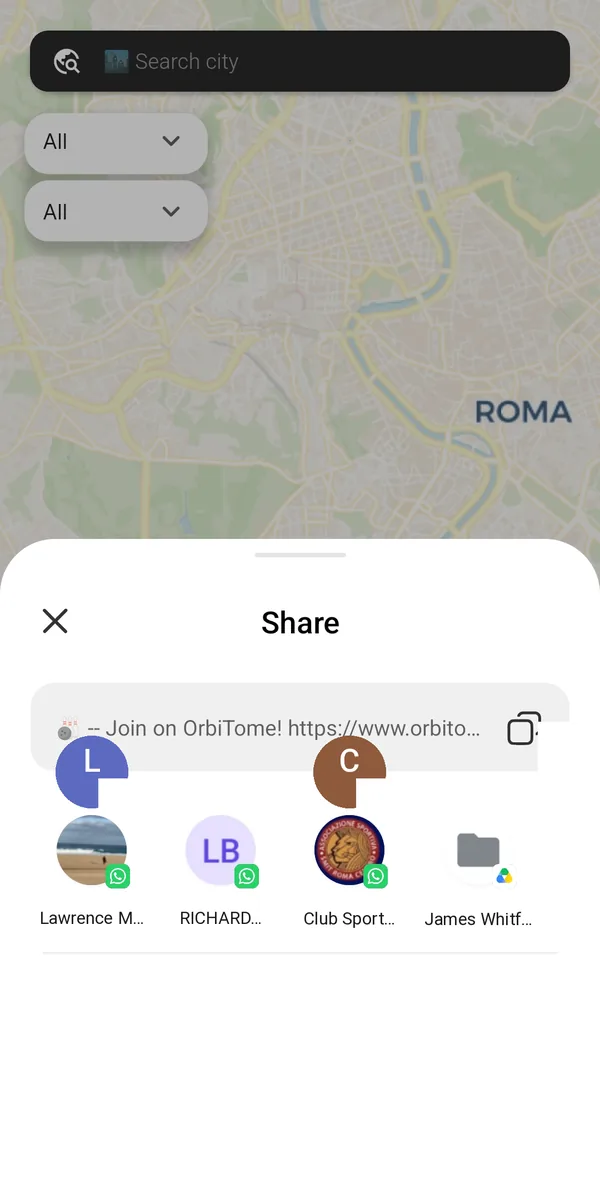
🔗 The invitation link: one tap and you're in
When you share an event, orbiTome mints a dedicated web address — something like orbitome.com/join/… — that you can send wherever you like: messages, email, your social apps, even printed as a QR code. The app shows you the messaging apps already on your phone and you pick one.
The interesting part is what happens at the other end. If they already have orbiTome, the link skips the browser and opens the event straight inside the app, ready to join.
If they don't, they aren't forced to install anything: a web page opens with all the event details — what, where, when, who's proposing it — along with a link to the right store, App Store on iPhone and Google Play on Android. Anyone who installs at that moment finds the invitation waiting for them.
👻 Ghost Mode: invitees only
Some events are for a select few. With Ghost Mode on, the event shows up only for the people you invited: for everyone else it simply doesn't exist. The screen spells it out, with a counter of how many people can see it.
The filtering happens on the phone of whoever is using orbiTome, not on a server: a deliberate choice, made for your privacy.
The Address Book: your contacts, on your terms
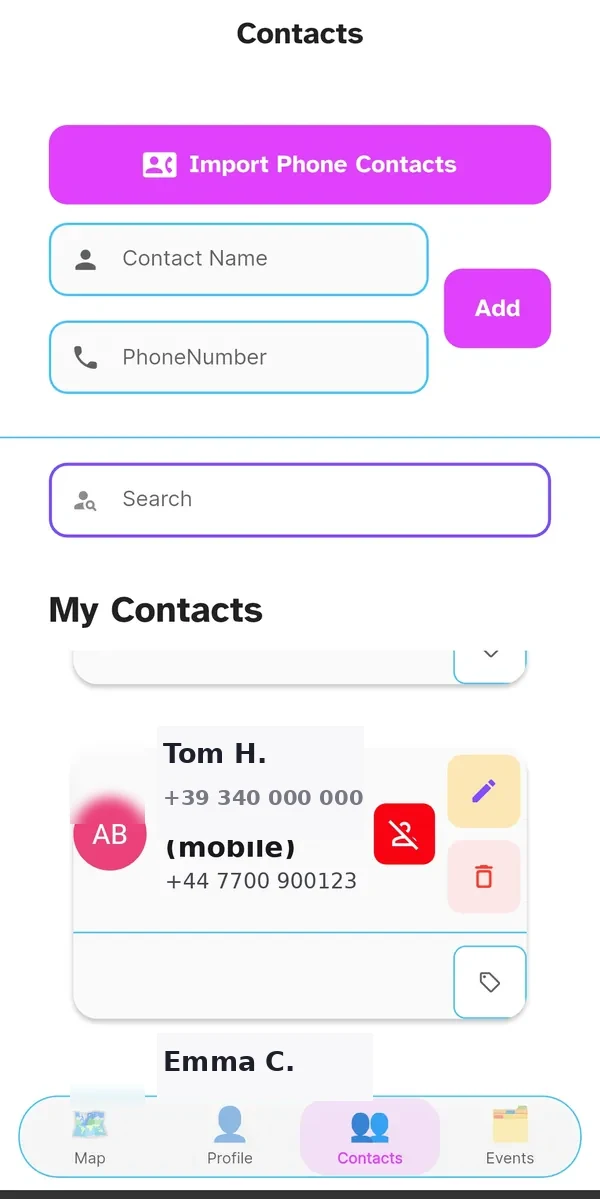
The Address Book page holds the contacts you've imported. Worth repeating, because it matters: they are stored on your phone and nowhere else, and they exist solely to make the app work.
For each contact it's your call: keep it, edit it, delete it or block it. And you can add new ones by hand, name and number, without going through an import at all.
Every contact can be filed under one or more tags — your groups: “five-a-side”, “work”, “Rome–Amsterdam”. From there, inviting a whole group is a single tap.
🚫 Blocking and reporting, with peace of mind
Sometimes you'd rather not run into someone again. From the Address Book you block them in two taps, with a confirmation so it isn't done by accident.
The block works both ways: from then on neither of you sees the other's events on the map, in either direction. The other person gets no notification at all. And if they had somehow received an invitation to one of your events, opening it in the app would simply tell them the event isn't available.
If the trouble comes from an event, the same thing is possible from its card: every event — yours or someone else's, past or future — carries a report option for unpleasant content. Reporting automatically blocks whoever created it.
You can also block someone who isn't on orbiTome yet: the block sits waiting against the phone number and takes effect by itself should that person ever sign up. Blocks can always be lifted from the Address Book.
One detail put there on purpose: contacts you remove stay flagged on your phone even after you delete your account, so a fresh import of your address book doesn't quietly bring them back.
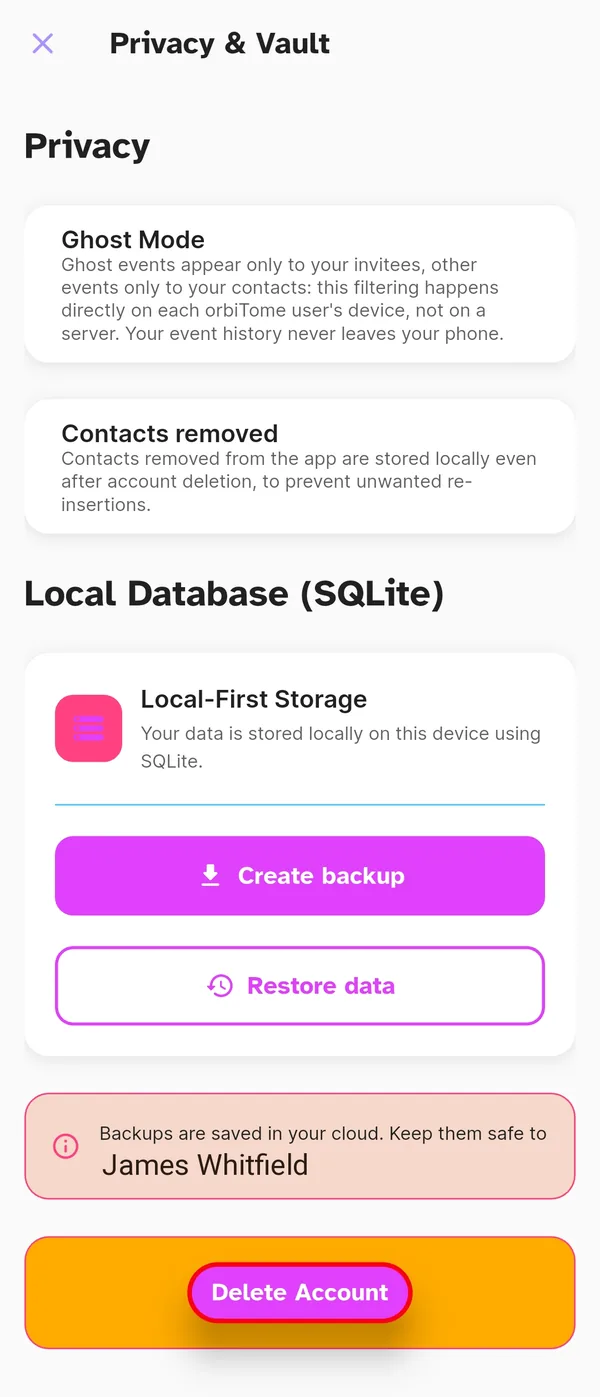
The Events page and event cards
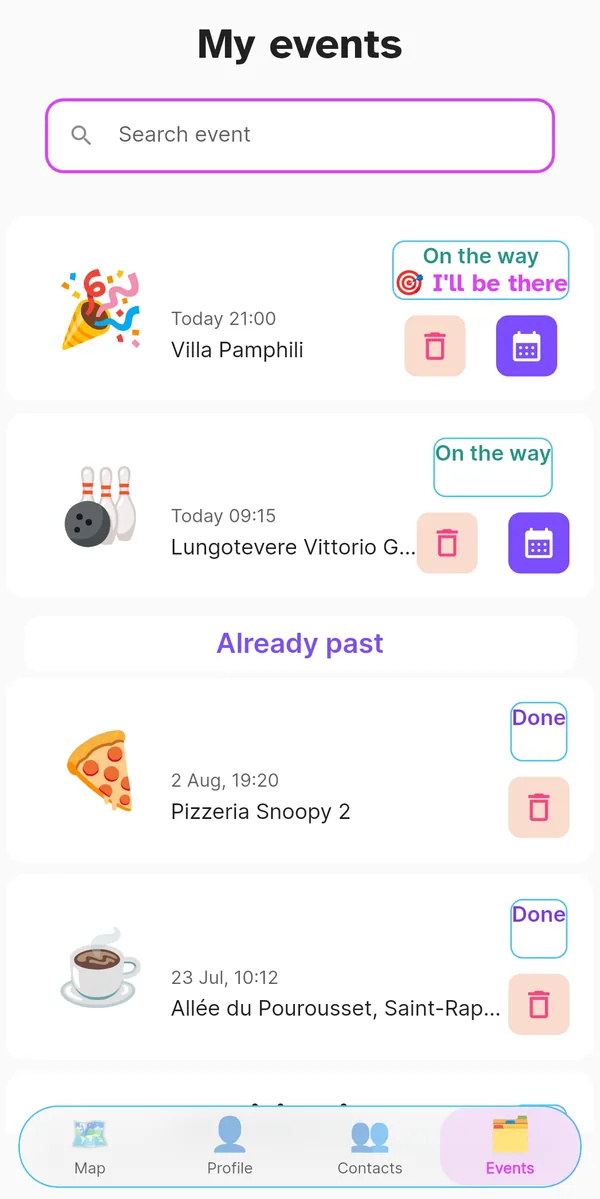
The Events page gathers everything that concerns you and puts it in order: today's and upcoming events first, always sorted from the nearest in time to the furthest, then the “Already past” section. Search sits at the top, for finding an event by name.
Upcoming events can be added to your phone's calendar with the dedicated button, so they don't slip your mind.
Every event has its own card, and the card changes with what you're looking at. If the event is yours and still ahead, you can add more people. If it's a Wish that has gathered enough interest, you convert it into an event that will actually happen. If it's someone else's, you can join. If it's under way, you can flag that you're leaving. If it's past, you see its details and can recreate a similar one in a tap. Invitations and cards also carry the “Navigate to location” button, which opens turn-by-turn directions.
Only one thing to watch: delete a past event and it's gone for good. The app asks for an explicit confirmation, but the action is final.
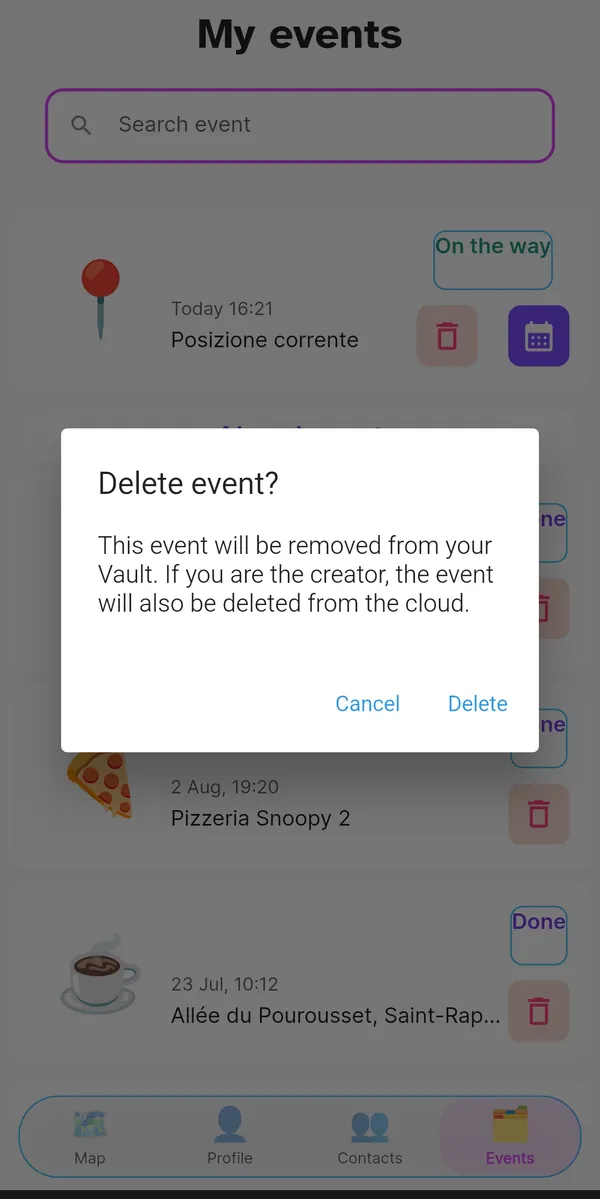

My Stash: your memories
Every finished event lands in your personal stash: what, where and when, icon included. A small chronicle of the good things you did together.
The “I am in” label marks a check-in at the venue: when you arrive, the app can record it by itself using your location. And if an invitation slipped past you, there's always room to add it.
Profile, tags and permissions
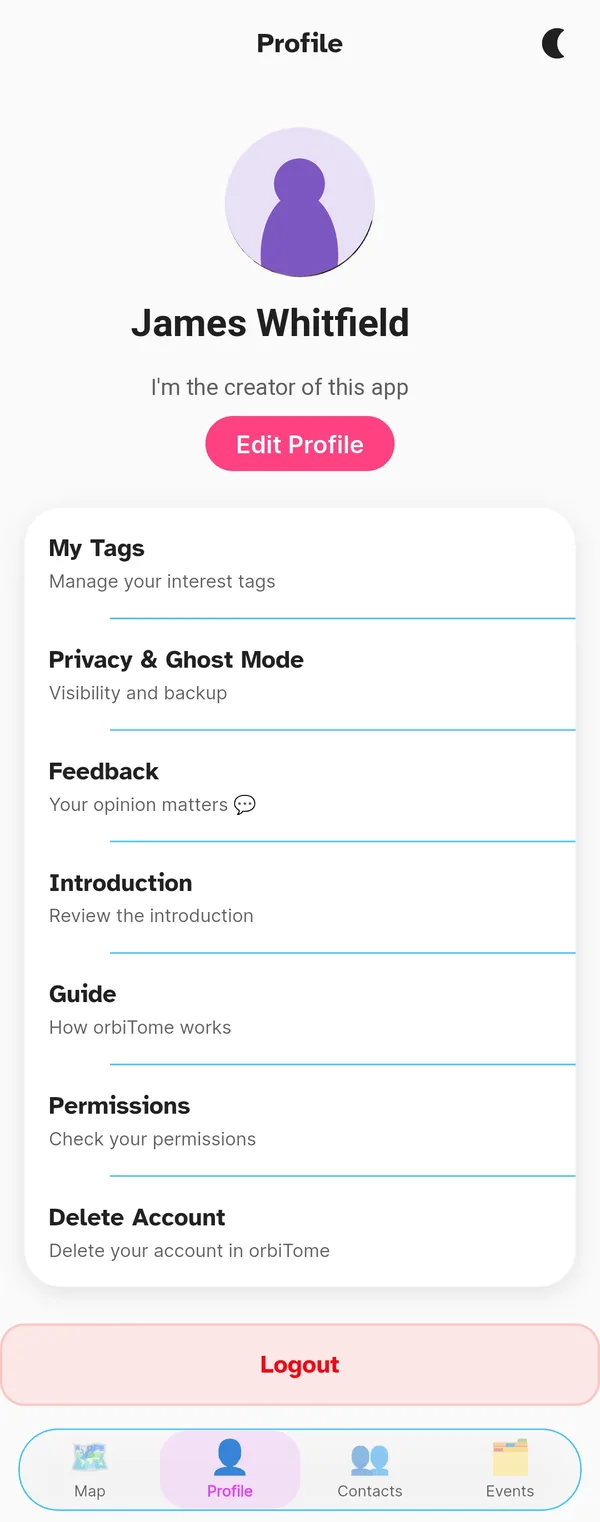
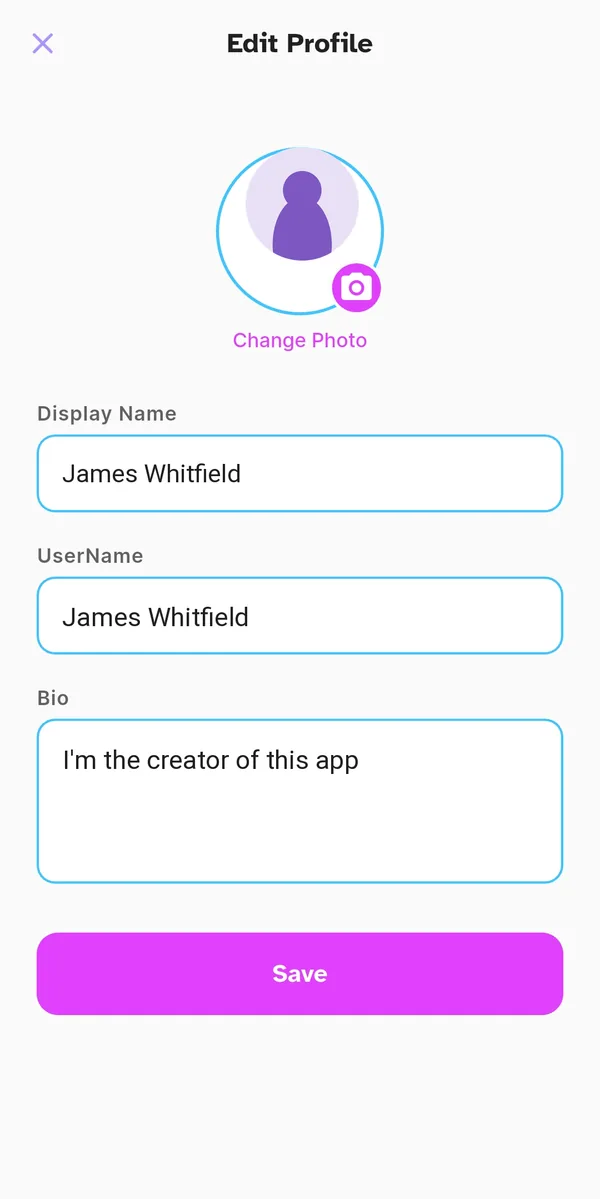
Profile is where you handle the essentials: photo and name, your tags, privacy and Ghost Mode settings, the address book, your memories.
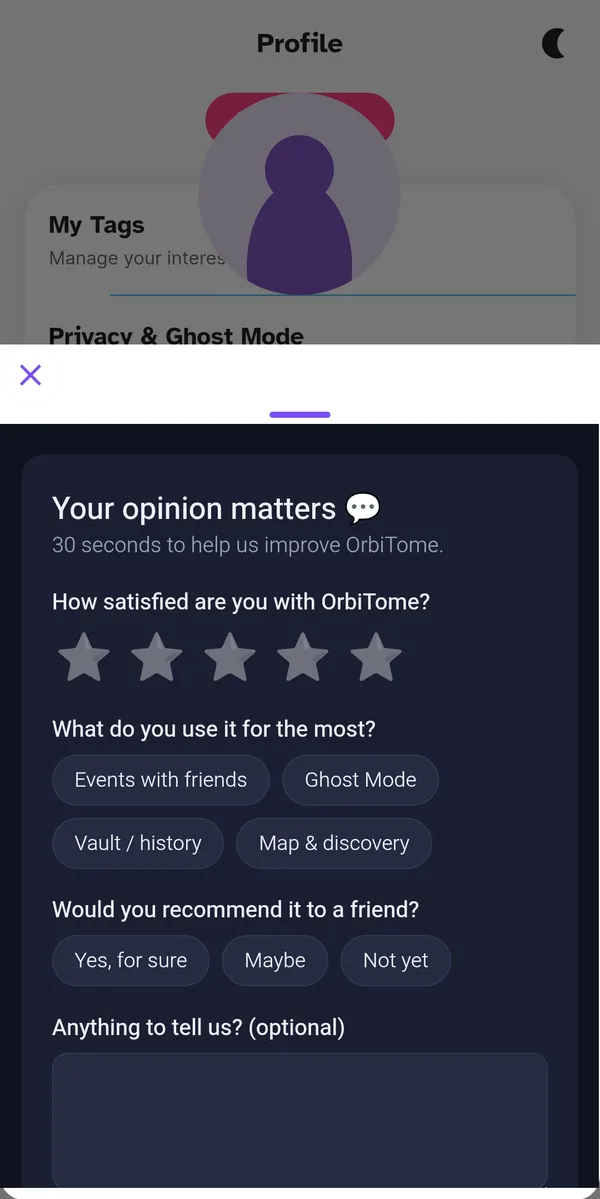
Everything else runs through here too: Introduction to replay the opening walkthrough whenever you want, Guide to call up this very page, Feedback to tell us how it's going (thirty seconds is enough), Permissions to check what you've granted, Logout and — should you ever decide to say goodbye — account deletion.
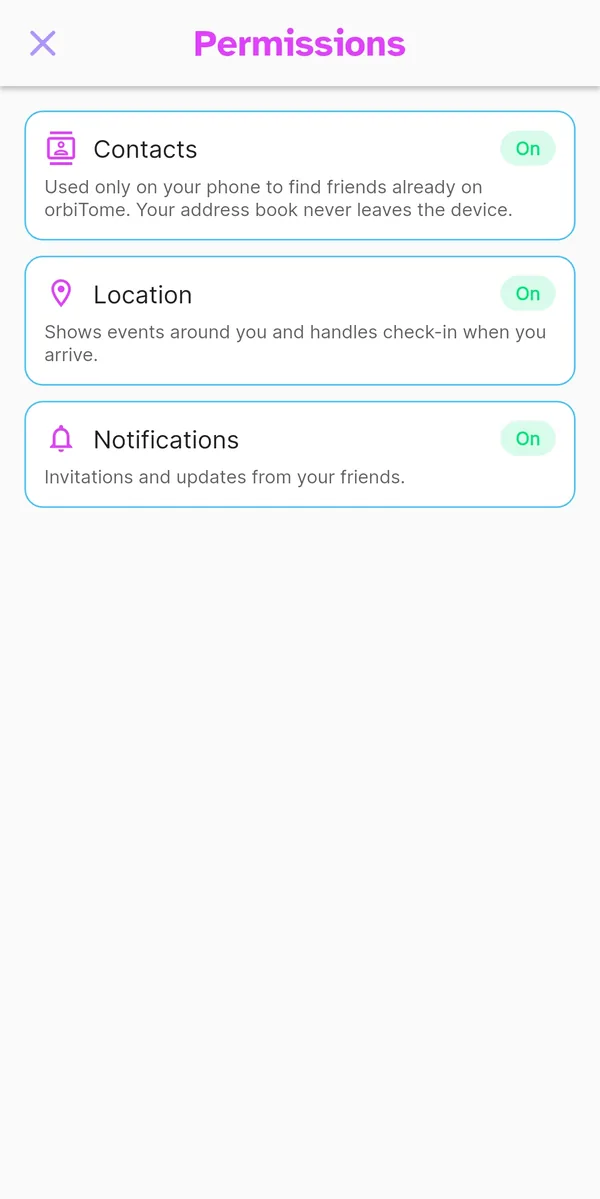
In the Permissions section every entry is spelled out: contacts, location and notifications, with the reason each is needed and its current state. The crescent-moon icon at the top switches on dark mode.
Your data, at home
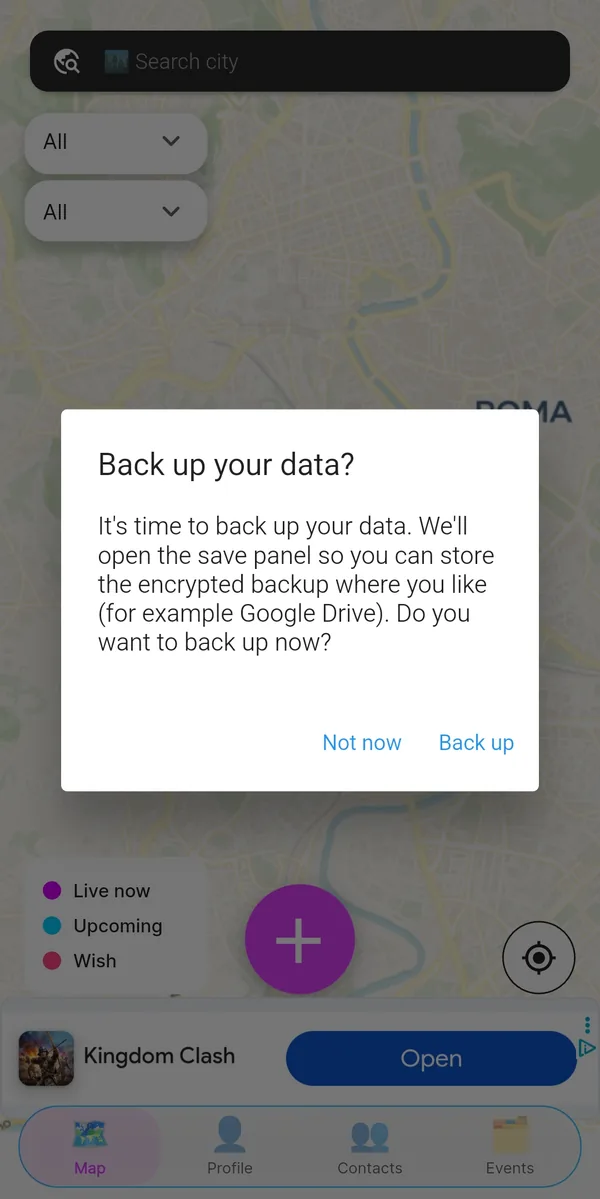
orbiTome runs locally first: events and contacts live in a database on your own device. Whenever you like — and now and then the app reminds you — you create a backup and save it to whichever cloud you prefer, Google Drive for instance.
The backup is encrypted and readable only by your own account in the app: were the file to end up in someone else's hands, it would stay unreadable.
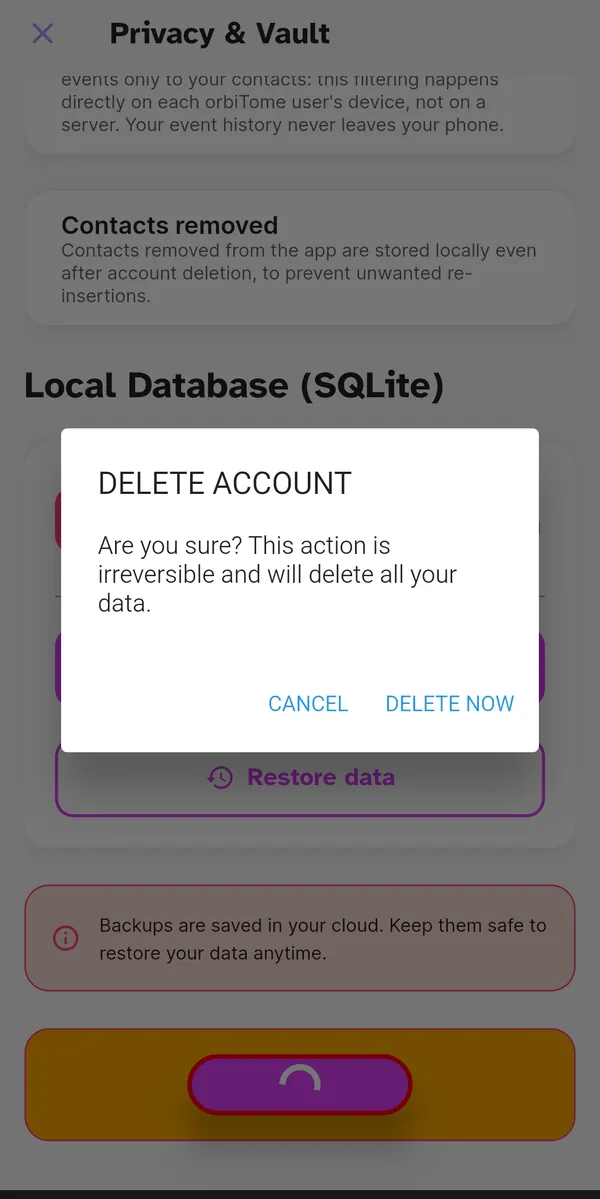
Changing phone? “Restore data” puts everything back where it was. And if you decide to leave, account deletion is final and wipes your data — the app asks twice before going ahead.
Frequently asked questions
Is orbiTome free?
Yes. The app is free to download and free to use for creating events, inviting friends and managing your address book.
Why do I have to enter the international dialling code?
Because orbiTome works across several countries and the same number can exist under different codes. Without the code — +44 for the UK, +1 for the US — the verification SMS never leaves.
How long before an event disappears?
Two hours from the start if you used the quick chips, until 23:59 if you chose “Tonight”, four hours if you set a date and time from the calendar. A Wish expires at the time it names.
Can an event last longer?
Yes, but only if the organiser is physically at the venue: in that case the app extends it an hour at a time, up to six hours from the start. If the organiser moves away after checking in, the event closes — straight away, or after thirty minutes if people are still there.
Who can see my events?
Ordinary events are visible to your contacts who use orbiTome; with Ghost Mode on, only to the guests you pick.
Is my address book uploaded online?
No. Contacts stay on your phone and serve only to recognise which of your friends are already on orbiTome. They are never sent to our servers.
Can I invite people who don't have the app?
Yes. While inviting you generate a link to share by message, email or social apps. Whoever receives it sees all the event details on a web page: to reply and join they need the app, and the link takes them straight to the right store.
What happens when I block someone?
The block is mutual and silent: neither of you sees the other's events any more, and the person receives no notification. You can unblock at any time from the Address Book.
Can I recover a past event I deleted?
No. Deleting an event from your stash is permanent — which is why the app asks you to confirm.
Is the backup safe?
The backup file is encrypted and can only be opened by your own orbiTome account, even if you store it on a third-party cloud.